Electron based Code editor or: How I Learned to Stop Worrying and Love VS Code
Bishesh Tiwaree · 21 Jan 2019 · 4 min read
Intro
After using PHPStorm for almost 4 years in mostly JavaScript based projects (PHPStorm for JS, I know right 🙄), I wanted to switch to a new IDE. My quest for a lightweight code-editor that has decent support for JS and extensive plugins to fiddle with led me to VS Code; I was still quite reluctant to switch to another code-editor for reasons I will go into in detail later. Since I hadn't used VS Code before, I did not know what all the fuss was about anyways. Boy, I was wrong 😲

My first experience with an Electron based editor was tainted (for a lack of a better word) by Atom Editor back in 2014 (Sorry GitHub, I love you ❤️); hence the reluctance to switch to VS Code. Back then, I tried opening my codebase using Atom and it horribly crashed a bunch of times; I frantically switched back to Sublime Text and resumed my work. I decided not to go back to an Electron based editor unless some magical editor would come along that would blow me away. VS Code proved to be the one.
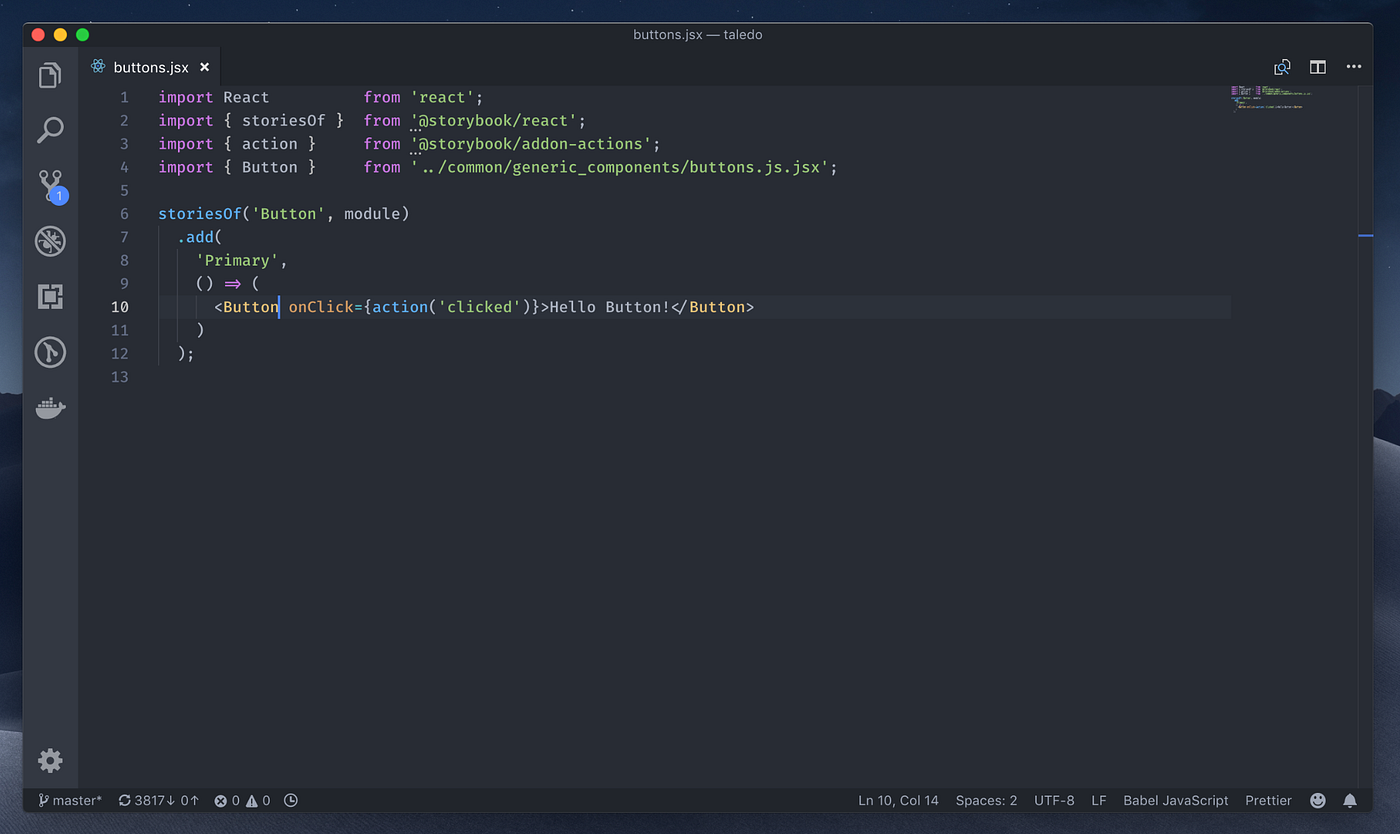
VS Code comes with IntelliSense, support for ligatures (if you haven't, try FiraCode), a built-in Chrome debugger, and wonderful extensions to make the development experience better, faster and fun.
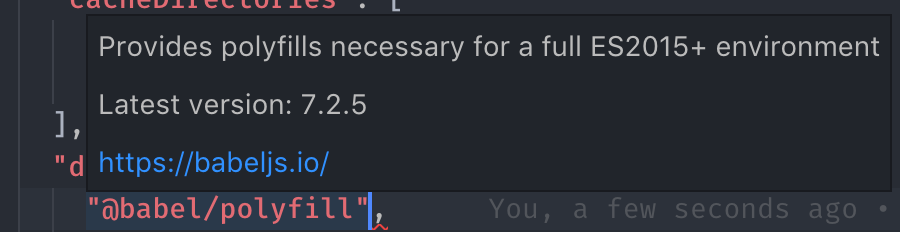
There are tiny details put into the editor that make working with it fun. For example: if I'd like to install the latest version of a package (@babel/polyfill in this case), all I need to do is hover over the package name and VS Code shows a little summary of what the package does and its latest version. Voilà!
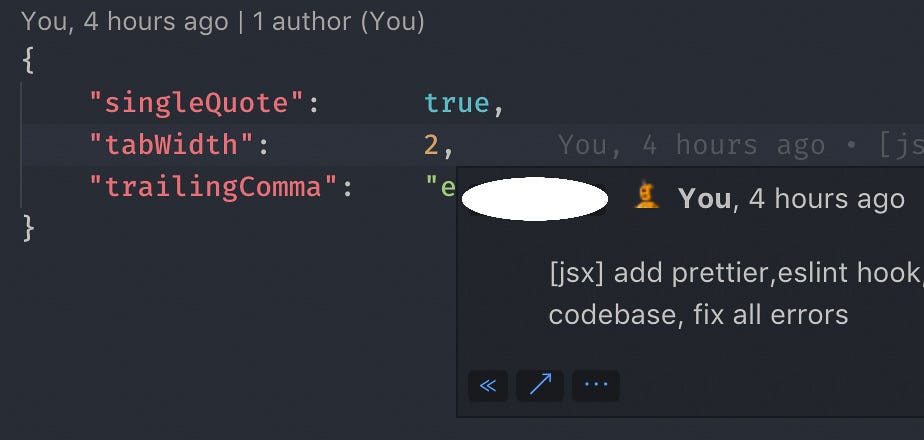
Extensions like GitLens supercharge the capabilities of the editor even more. It takes Git Blame to a new level visually.
VS Code is open source and they have (almost) monthly releases with a milestone set for each release on GitHub to make open-source contribution easier. These are just some of the extensible list of features VS Code has that makes development much easier. I have written a list of extensions and themes one might find helpful in VS Code.
It comes with User (for the whole editor) and Workspace-specific configuration that can be exported as a JSON.
It has support for tasks to run things like linting, testing, deploying etc.
VS Code comes with a built-in Markdown viewer.
Refactoring is a significant aspect of development and VS Code comes with some nifty tricks to make refactoring easy — head over to the docs to see how you can extract and rename things within your code.
Caveats
One of the caveats is that you have to restart the editor when you install an extension. Since the reloading is almost instantaneous, it's not noticeable (looking at you PHPStorm 🙃).
Why I ditched PHPStorm
Simply put, the bulkiness and slowness of the IDE was outweighing the features provided by the IDE. It's quite annoying how PHPStorm hoards a significant amount of memory on each boot-up and keeps getting worse as time passes; JetBrains IDEs are quite notorious for that, it seems.
Extensions I use daily
Here are some of the extensions I found quite helpful and use on a daily basis:
- GitLens
- Prettier
- SVG Viewer
- Docker
- ESLint
- Chrome Debugger
- Bookmarks
- Material Theme
- One Dark Pro Theme
Don't forget to try FiraCode if you'd like to experiment with font ligatures. You can download VS Code and try it for yourself.
P.S. I have nothing but admiration for all open-source projects and the efforts people put into them; my opinions related to Atom are highly influenced by my first usage of the editor back in 2014.
Originally published on Medium in January 2019.